import
Help page for codify import
codify import <type> [type...]
[--json]
[--debug]
[-o plain|default|debug|json]
[-s]
[-p <value>]
Use codify import to generate new resource configs for programs and settings currently installed on your system that
aren't yet defined in your codify.jsonc file.
The import command scans your system and creates Codify configuration blocks for the tools and applications you specify, making it easy to bring existing installations under Codify management without having to write configs by hand.
Use Cases
- Getting started: Quickly generate configs for your existing setup instead of writing them manually. Import specific resources like
codify import homebrew nvmor scan for everything withcodify import. - Adding new resources: You've been managing some tools outside of Codify and want to add them to your configuration file.
- Discovering what's supported: Run import to see which of your installed tools Codify can manage.
How it Works
With Type Arguments
When you specify resource types, Codify will:
- Scan your system for those specific resources
- Prompt you for any required identifying information (for multi-instance resources)
- Generate configuration blocks for the found resources
- Show you a diff if updating an existing file
- Write the configs to your
codify.jsoncfile
Without Type Arguments (Auto-Discovery)
When you run codify import with no arguments, it functions like codify init:
- Automatically scans your system for all supported resources
- Generates configs for everything it finds without requiring user input
- If a
codify.jsoncfile already exists, adds only the resources that aren't already defined - If no file exists, creates a new one with all discovered resources
This makes codify import perfect for both getting started and incrementally adding new resources to existing configurations.
Multiple Instances
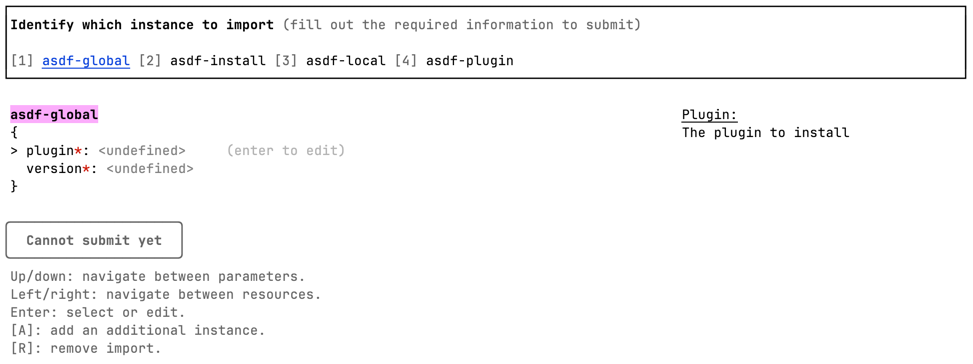
For resources that can have multiple instances on the system (like git-clone, path, or alias), Codify will prompt you for identifying information to import the specific instance you want.
For example, with git-clone, you'll be prompted for the path of the directory to import. The prompt includes shortcut keys to remove an import or add additional ones.
Diff Preview
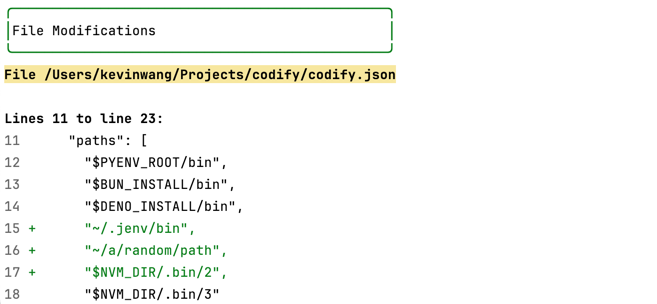
If you have an existing codify.jsonc file, Codify will show you a diff of the new resources that will be added. The import preserves your existing file's formatting (spacing, indentation, structure) when inserting new configs.
You can choose to:
- Update your existing file with the new resources
- Write to a new file instead
- Cancel the operation
Import vs Refresh
Understanding the difference between these two commands:
codify import: Generates new resource configs for tools not yet in yourcodify.jsoncfilecodify refresh: Updates resources already in yourcodify.jsoncfile with changes from your system
Example scenario:
- Your
codify.jsonccontains a homebrew resource - You want to add your
nvmsetup which isn't in your config yet - Run
codify import nvm→ Adds a new nvm resource block to your file - Later, you manually change your global Node version
- Run
codify refresh→ Updates the existing nvm resource with the new global version
Arguments
<type>
The type id of the resources to import. Multiple ids separated by spaces can be specified. Wildcards * and ? can be used to match multiple types at once.
Special behavior:
- With types specified: Imports only those specific resource types
- No types specified: Auto-discovers and imports all supported resources (like
codify init)
Examples:
codify import homebrew nvm vscode    # Import specific resources
codify import asdf*                   # Import all resources starting with 'asdf'
codify import *                       # Import all supported resources
codify import                         # Auto-discover and import everything
Options
Path: —path -p
Specify the path for the codify.jsonc file. This parameter accepts both relative and absolute paths.
Example:
codify import nvm -p ~/projects/my-config/codify.jsoncOutput mode: —output -o
Specify the CLI output mode. Options: [default, plain, json]. The output mode controls what gets printed to the console.
Example:
codify import homebrew -o jsonDebug output mode: —debug
A flag to enable debug mode. In debug mode, the debug output will be turned on and the DEBUG=codify flag will be passed to all plugins. Additional and verbose logging will be printed. Useful for debugging any issues.
Example:
codify import vscode --debugExamples
Auto-discover everything (quick start)
Let Codify find and import all supported resources automatically:
codify importThis will scan your system and import everything it can find, perfect for getting started quickly or adding multiple new resources at once.
Import specific resources
Import only the tools you specify:
codify import homebrew nvm vscodeImport with wildcards
Import all resources matching a pattern:
codify import asdf*        # Import asdf, asdf-java, asdf-python, etc.
codify import git*         # Import git, git-lfs, git-clone, etc.
Import all supported resources
Explicitly import everything Codify supports:
codify import *Import to custom location
Import resources and save to a specific file:
codify import nvm pyenv -p ~/team-config/codify.jsoncImport with JSON output
Get machine-readable output for automation:
codify import homebrew -o jsonCommon Workflows
Workflow 1: Getting Started with Codify
# First time using Codify? Let it discover your setup automatically
codify import

# Review the generated config
cat ~/codify.jsonc

# Apply it to verify everything works
codify apply
Workflow 2: Incremental Adoption
# You already have a codify.jsonc with homebrew
# Now you want to add your Node.js setup
codify import nvm

# Later, add Python
codify import pyenv

# Your config grows incrementally as you adopt Codify
Workflow 3: Selective Import
# Import only version managers
codify import nvm pyenv jenv rbenv

# Import all git-related resources
codify import git*
Workflow 4: Project Setup
# Starting a new project, import project-specific tools
cd ~/projects/my-app
codify import nvm vscode git-clone -p ./codify.jsonc

# Commit to version control
git add codify.jsonc
git commit -m "Add Codify configuration"
Workflow 5: Team Onboarding
# New team member clones repo with codify.jsonc
# They have some tools installed but not all
# Import missing tools automatically
codify import

# Then apply to install anything missing
codify apply
Tips
- Use
codify importwith no arguments for the fastest way to get started or add multiple new resources at once - Import only adds new resources—it won't modify resources already in your config (use
codify refreshfor that) - Wildcards are powerful for importing related resources:
codify import asdf*imports all asdf-related resources - The import command never changes what's installed on your system—it only generates/updates your config file
- After importing, always run
codify applyto verify the imported config matches your system state - Combine
codify importandcodify refreshin your workflow: import new resources, refresh existing ones
Related Commands
codify init- Interactive wizard for first-time setup (prompts you to select which resources to import)codify refresh- Update existing resources in your config with system changescodify apply- Apply your configuration to install or update resources on your systemcodify plan- See what changes would be made without applying them